

How to Make Russ Load-Faster

Table of Contents
Rust, the immersive survival game renowned for its vast landscapes, open-world exploration, and dynamic player encounters, often presents a common challenge: lengthy loading times.
This is particularly noticeable when joining heavily populated servers or navigating complex in-game environments.
If you’re wondering how to make Rust load faster, here are the most effective strategies to reduce loading times and enhance your gaming experience.
1. Upgrade Your Hardware Components
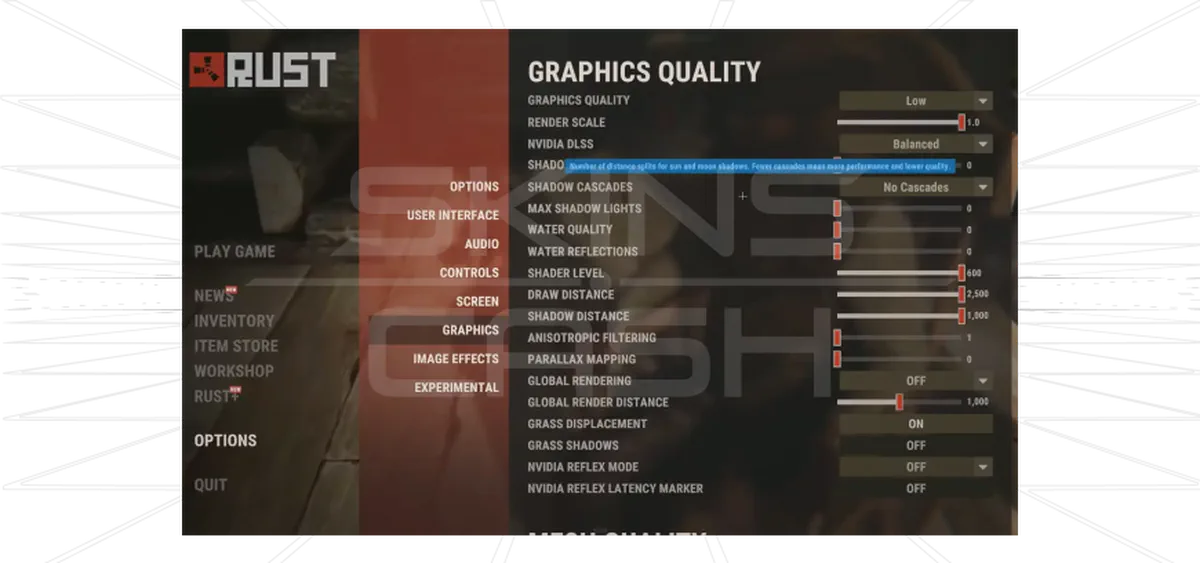
Your system’s hardware plays a critical role in how fast Rust loads.
Storage Solutions
- Switch from HDD to SSD for drastically reduced loading times.
- SSDs provide faster data transfer, essential for smooth asset streaming.
Memory Enhancement
- Rust is RAM-intensive, especially on busy servers.
- Upgrade to 16GB or more for stable performance and minimal stutter.
Processing Power
- A strong CPU improves loading efficiency.
- A capable GPU enhances visuals and prevents frame drops.
- For Rust load time improvements in 2025, invest in modern processing components.
2. Optimize Game Settings
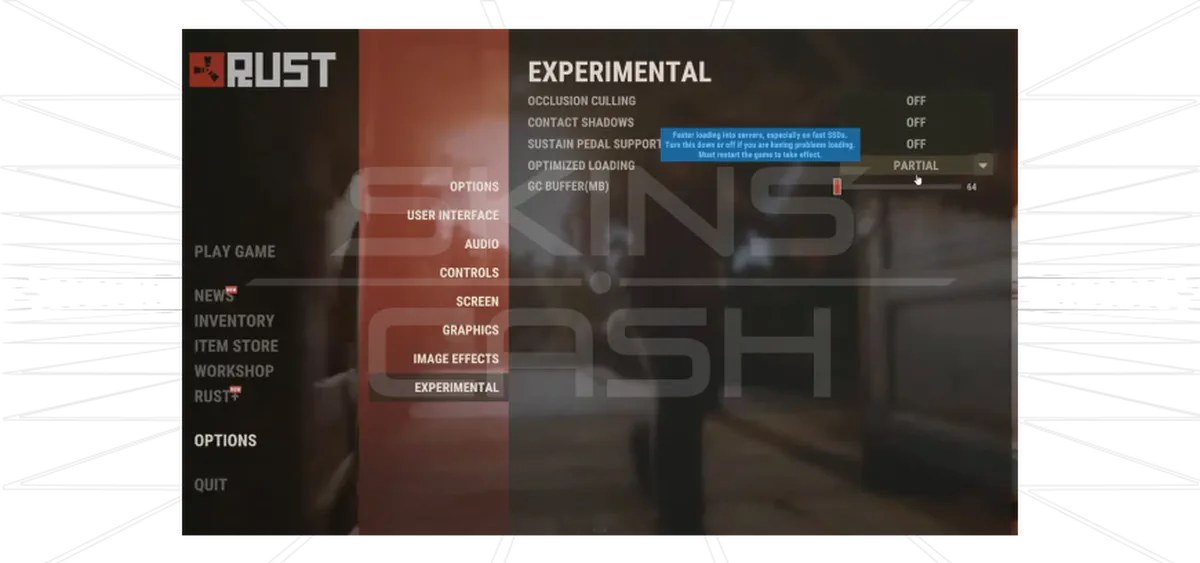
Fine-tuning your settings can improve both load speed and in-game performance.
Graphics Configuration
- Texture Quality: Low or Medium.
- Shadow Quality: Low or Disabled.
- Draw Distance: Reduce for less terrain/object load.
- Anti-Aliasing: Disable.
Visual Effects Management
- Turn off V-Sync and Motion Blur for faster rendering and loading.
3. Keep Drivers Updated
- Outdated drivers = performance bottlenecks.
- Regularly update GPU drivers from NVIDIA or AMD official sources.
4. Use Steam Launch Options
Custom launch commands can help optimize Rust before it even starts.

Sell your CS2 skins for real money.
How to set launch options:
- Open Steam → Library.
- Right-click Rust → Properties.
- Under General, select Set Launch Options.
Recommended commands:
-force-d3d9→ Forces DirectX 9 for potential performance boost.-high→ Prioritizes Rust in CPU resource allocation.-threads <number>→ Matches CPU threads to your physical core count.
5. Maintain Game File Integrity
Corrupted files can slow loading.
To verify:
- Steam → Library → Right-click Rust → Properties.
- Go to Local Files → Verify Integrity of Game Files.
6. Choose the Right Servers
Server selection impacts loading time. For faster access:
- Choose moderate player count servers.
- Avoid heavily modded maps.
- Pick servers with optimized map sizes.
7. Manage System Resources
Before launching Rust, close unnecessary programs:
- Web browsers
- Media players
- Communication apps
- Any background software consuming CPU/RAM
Community Resources
For more tips and troubleshooting:
- Facepunch Forums – Developer support.
- Rust Subreddit – Player-driven advice.
- Steam Community Forums – Platform help.
- Rustafied Forums/Discord – Expert updates.
Rust Loading Times by Hardware
Сonclusion
How to make Rust load faster comes down to:
- Upgrading hardware (SSD, more RAM, better CPU/GPU).
- Tweaking game settings for efficiency.
- Using Steam launch options.
- Maintaining game and system health.
- Choosing optimized servers.
By following these steps, you can cut load times and enjoy smoother Rust gameplay.


